

In this post, we will talk about how to import the XML file to FileMaker without using the XSLT style sheets. This solution will be compatible for versions above FileMaker V12.
Overview:
Using Custom Function we can extract specific data out of XML formatted text without using FileMaker’s built-in XML functionality. In the past, app developers would have used the FileMaker’s built-in XML functionality to accomplish this functionality. This can be achieved by the following ways.
Configuration of XML Import without XSLT File:
Step 1:
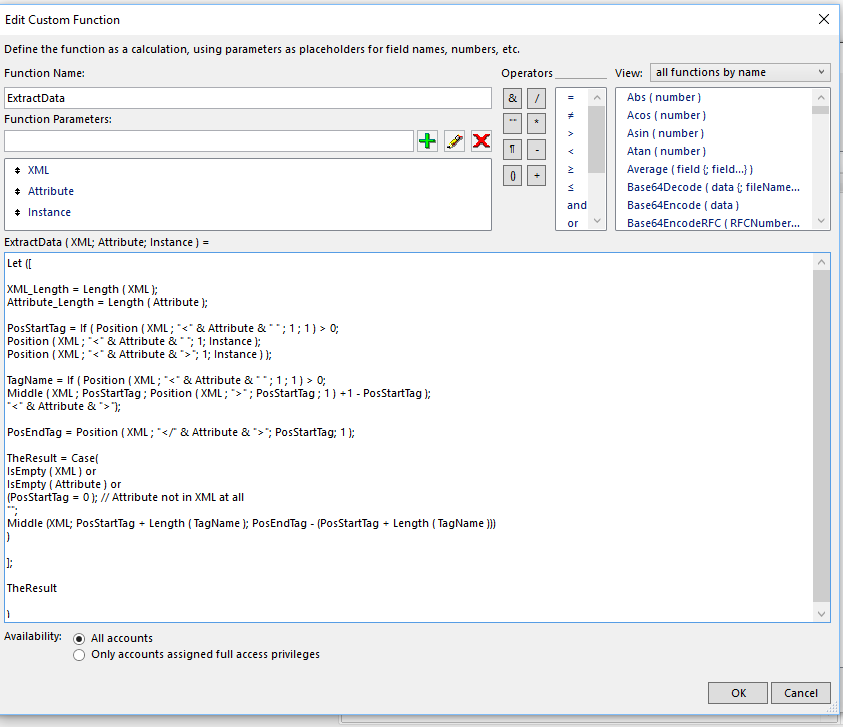
To use this feature, first configure a following custom function in “Manage Custom Function”
Function Name: ExtractData
Function Parameters:
XML
Attribute
Instance
Function:
Let ([
XML_Length = Length ( XML );
Attribute_Length = Length ( Attribute );
PosStartTag = If ( Position ( XML ; “<” & Attribute & ” ” ; 1 ; 1 ) > 0;
Position ( XML ; “<” & Attribute & ” “; 1; Instance );
Position ( XML ; “<” & Attribute & “>”; 1; Instance ) );
TagName = If ( Position ( XML ; “<” & Attribute & ” ” ; 1 ; 1 ) > 0;
Middle ( XML ; PosStartTag ; Position ( XML ; “>” ; PosStartTag ; 1 ) +1 – PosStartTag );
“<” & Attribute & “>”);
PosEndTag = Position ( XML ; “</” & Attribute & “>”; PosStartTag; 1 );
TheResult = Case(
IsEmpty ( XML ) or
IsEmpty ( Attribute ) or
(PosStartTag = 0 ); // Attribute not in XML at all
“”;
Middle (XML; PosStartTag + Length ( TagName ); PosEndTag – (PosStartTag + Length ( TagName )))
)
];
TheResult
)
Step 2:
Need to store the XML file in the FileMaker container field. Another field fetches the content of a XML file using FileMaker functions (Base64Encode, Base64Decode). Please see screenshot below for reference.

Step3:
Using Script steps, we can extract the data to the FileMaker specified fields. Please see screenshot below:

While extracting the data from XML file need to specify the correct tag name (see above red marked box) that’s available in XML file.
If we implement the above mentioned 3 steps, we will get the XML data to FileMaker without using a XSLT file.
The team at FMDBSolutions hopes this article taught you how to import XML File data to FileMaker without XSLT file. FMDBSolutions is a team of well-qualified experts that have a lot of experience with the many versions of FileMaker Pro and the FileMaker Go app too.
Our team knows all about transitioning, migrating, converting, and upgrading for FileMaker. Companies that require FileMaker Integration can also use our services. We have worked with clients from the USA, Australia, and Singapore and will complete your FileMaker assignment in the best possible way at a lower price but the same or higher level of excellence.
If you want solutions to your FileMaker database, we can help.Click the below box for a free FileMaker consultation

You can also leave us your email below for receiving new updates regarding FileMaker and our company.
