


In this post, we will talk about Creating a Word Document Using MBS Plug-in in FileMaker.
Overview:
How to create Word documents dynamically from FileMaker database entries. we use the MBS plug‑in to automate generation and cut manual entry errors.
Manual generation of Word documents from database records was time consuming and inefficient, requiring data copying, template filling, formatting and manual image insertion. It was error prone and often produced typos, missing or incorrect data, and inconsistent formatting.
To avoid the Concerns mentioned above, we now generate Microsoft Word files using the MBS (MonkeyBread Software) Plug-in in FileMaker. The process loads a Word template from a container field, replaces merge tags with dynamic data, inserts images, and exports the finished document.
Steps to Creating a Word Document Using MBS Plug-in in FileMaker:
Step 1: Load the Word document Template
- Download and install the MBS Plug-in before starting the process.
- Store your Word template in a FileMaker container field.
- The template should contain merge tags (e.g., «FName», «LastName», «Street») where dynamic data will be inserted.
- Use the MBS Plug-in function to load the template into memory.
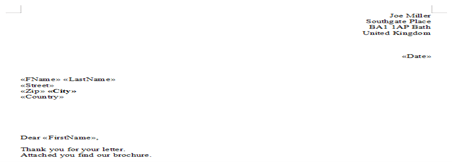
Step 2: Replace Merge Tags with Dynamic Data
- Use the WordFile.ReplaceTag function to replace placeholder tags with actual data from your FileMaker databas
- Ex tags:
- «Date» – Document date
- «FName» – First Name
- «LastName» – Last Name or Company Name
- «Street» – Street address
- «Zip» – Postal code
- «City» – City name
- «Country» – Country name
- «TDescription» – General description inserted in tables
Step 3: Insert Images into the Document
- Retrieve media references using WordFile.MediaFiles
- Get the first image reference from the list
- Replace it using WordFile.SetMediaFile to insert signatures, photos, or logos
- This allows the final document to contain visual elements like company logos or customer signatures
Step 4: Write the File to Destination
- Generate the file path for the output location (e.g., Desktop)
- Use the MBS function to write the completed Word document to the specified location
- The file is saved with a .docx extension (e.g., “test output.docx”)
Step 5: Open and Release
- Automatically open the generated Word document for user review
- Release memory by clearing the MBS Plug-in variables
- This ensures system resources are properly managed
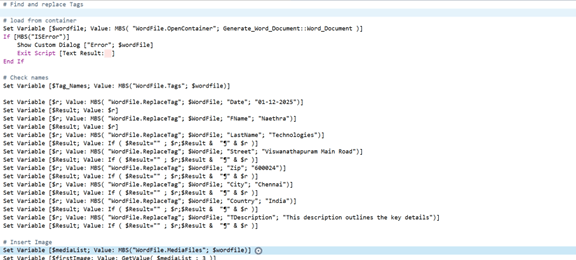
Figure 1: Tag Replacement Script – This section handles loading the Word template, checking for errors, and replacing merge fields.

Figure 2: File Output Section – This part handles generating the file path, writing the Word document to the Desktop, opening the file, and releasing memory.
Final Output Example:
- When the script runs successfully:
- The template is filled with customer details from the FileMaker database
- Description and address fields are properly inserted
- Images (logos, signatures, photos) are placed in designated locations
- The completed Word file is saved as “test output.docx” on the Desktop
- The document opens automatically for immediate review

Conclusion
The team at FMDBSolutions hopes this article taught about how to create a Word document from FileMaker data using the MBS Plug‑in. FMDBSolutions is a team of well-qualified experts that have a lot of experience with the many versions of FileMaker Pro and the FileMaker Go app too.
Our team knows all about transitioning, migrating, converting, and upgrading for FileMaker. Companies that require FileMaker Integration can also use our services. We have worked with clients from the USA, Australia, and Singapore and will complete your FileMaker assignment in the best possible way at a lower price but at the same or higher level of excellence.
If you want solutions to your FileMaker database, we can help. Click the below box for a free FileMaker consultation.

You can also leave us your email below for receiving new updates regarding FileMaker and our company.
