

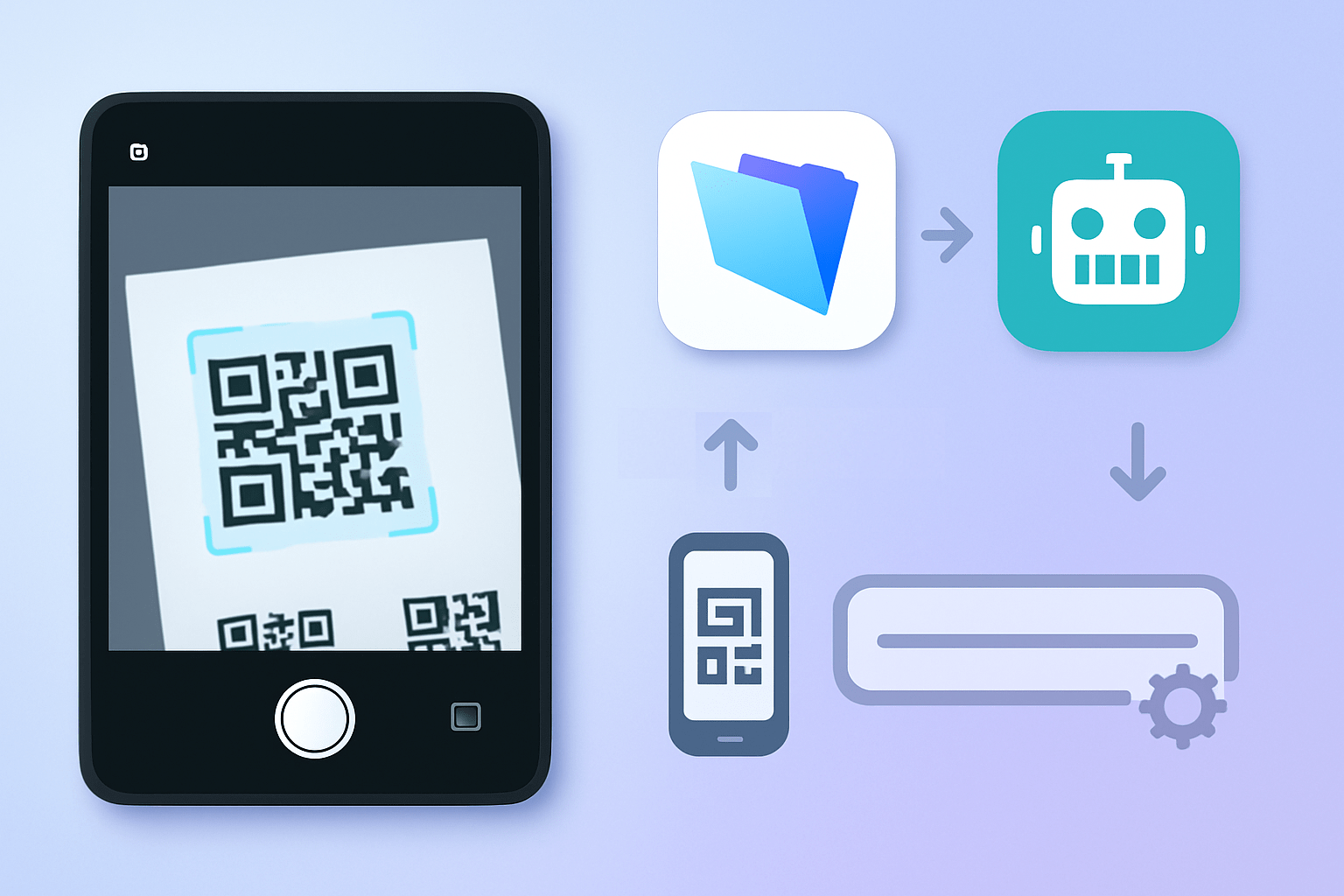
In this post, we will talk about Scan QR Codes from FileMaker Using the QR Bot App.
Overview:
How can we accurately scan a specific QR code from a label or invoice when multiple QR codes are present? We solved this challenge by integrating FileMaker with the QR Bot app.
Some of our customers need to scan a particular QR code on labels or invoices that contain multiple QR codes. While FileMaker’s native functionality allows QR code scanning, it cannot target a specific QR code when several are present in the same image.
By integrating with the QR Bot app, we can define and restrict the scanning area within the camera view—allowing users to scan only the QR code located at a chosen position on the label or document.
This article explains how to integrate QR Bot with FileMaker to achieve this and this can be work on the iOS FileMaker.
Steps to Integrate QR Bot with FileMaker:
Step 1: Download the QR Bot App
- First, download and install the QR Bot app on the iPad that will be used for QR scanning. The app can be downloaded from the official QR Bot website: https://qrbot.net
Step 2: Create FileMaker Scripts to Trigger QR Bot Scanning
To initiate scanning from FileMaker, we use the Open URL script step to launch the QR Bot app via its callback URL scheme.
A typical QR Bot callback URL looks like this:
qrbot://x-callback-url/scan?x-success=<CALLBACK_URL>
Here, x-success defines the URL that QR Bot should call after completing the scan. This callback URL reopens FileMaker and triggers a script to process the scanned result.
Important Note:
- QR Bot supports HTTP/HTTPS URLs only for callbacks. It does not accept fmp:// URLs directly.
To work around this limitation:
- We created a simple PHP script hosted on a server.
- FileMaker passes the database name and script name to this PHP URL.
- The PHP script then triggers the corresponding fmp:// URL internally to open FileMaker and run the desired script.
This workflow allows FileMaker to launch QR Bot, adjust the camera position (shrink, enlarge, or reposition the scanning area), and target the exact QR code you want to scan.
Once the scan is completed, QR Bot automatically calls the callback URL, which reopens FileMaker and runs the specified script. From there, FileMaker receives the scanned result and processes it as needed.
Conclusion
The team at FMDBSolutions hopes this article taught about how to integrate with QR Bot app with FileMaker. FMDBSolutions is a team of well-qualified experts that have a lot of experience with the many versions of FileMaker Pro and the FileMaker Go app too.
Our team knows all about transitioning, migrating, converting, and upgrading for FileMaker. Companies that require FileMaker Integration can also use our services. We have worked with clients from the USA, Australia, and Singapore and will complete your FileMaker assignment in the best possible way at a lower price but at the same or higher level of excellence.
If you want solutions to your FileMaker database, we can help. Click the below box for a free FileMaker consultation.

You can also leave us your email below for receiving new updates regarding FileMaker and our company.
